
Working from home is no longer a temporary trend — it has become a permanent reality for millions of professionals, freelancers, and entrepreneurs across the US and Europe. By 2026, over 35% of knowledge workers in the US and 28% across the EU work remotely at least three days per week, according to recent labor market data.
Yet most home office setups fail — not because of budget, but because of poor structural and ergonomic planning. A chair pulled from the dining table, a laptop balanced on a kitchen counter, overhead lighting that creates screen glare, and cables running across the floor are not just aesthetic problems. They are engineering failures that directly cause physical injury, reduced cognitive performance, and long-term productivity loss.
As a Civil Engineer (M.Eng., Germany) with 17 years of experience designing residential and commercial spaces, I approach home office design the same way I approach any building project — with a systematic analysis of function, ergonomics, light, airflow, and spatial efficiency before a single piece of furniture is selected.
This guide gives you that complete framework — whether you have a dedicated room, a spare corner, or a compact European apartment with no obvious office space at all.
Step 1: Define Your Work Profile Before Buying Anything
The single biggest mistake people make when setting up a home office is buying furniture and equipment before defining how they actually work. This leads to expensive mismatches — a large L-shaped desk in a space that needed a wall-mounted fold-down, or a standing desk for someone who spends 80% of their day on video calls.
Before selecting anything, answer these questions honestly:
Work Mode:
- Do you work primarily on a single screen or multiple monitors?
- Do you attend video calls frequently — and does your background need to look professional?
- Do you work with physical documents, samples, or equipment that needs desk space?
- Is your work primarily focused solo work, or collaborative communication?
Time Profile:
- Are you full-time remote (8+ hours daily) or part-time (3–4 hours)?
- Do you work standard hours or shifted hours that require specific lighting control?
Space Reality:
- Do you have a dedicated room or a shared-space corner?
- What is the floor area available? (Measure it — don’t estimate)
- What is the ceiling height? (Relevant for shelf and lighting planning)
- Is the space in a US home (typically more square footage) or a European apartment (typically more constrained)?
Your answers to these questions determine every subsequent decision in this guide. A full-time remote software developer needs a fundamentally different setup than a part-time freelance writer — and designing for the wrong profile wastes money and creates friction every working day.
Step 2: Choose the Right Location Using Structural Logic
Location selection is the most consequential decision in home office design — and the most frequently made on gut feeling rather than analysis.
The Four Location Criteria I Use as an Engineer:
1. Acoustic Isolation Your workspace needs protection from household noise (kitchen appliances, TV, foot traffic) and your household needs protection from your work noise (calls, keyboard, printer). Rate each candidate location on a 1–5 scale for acoustic separation from the rest of the home.
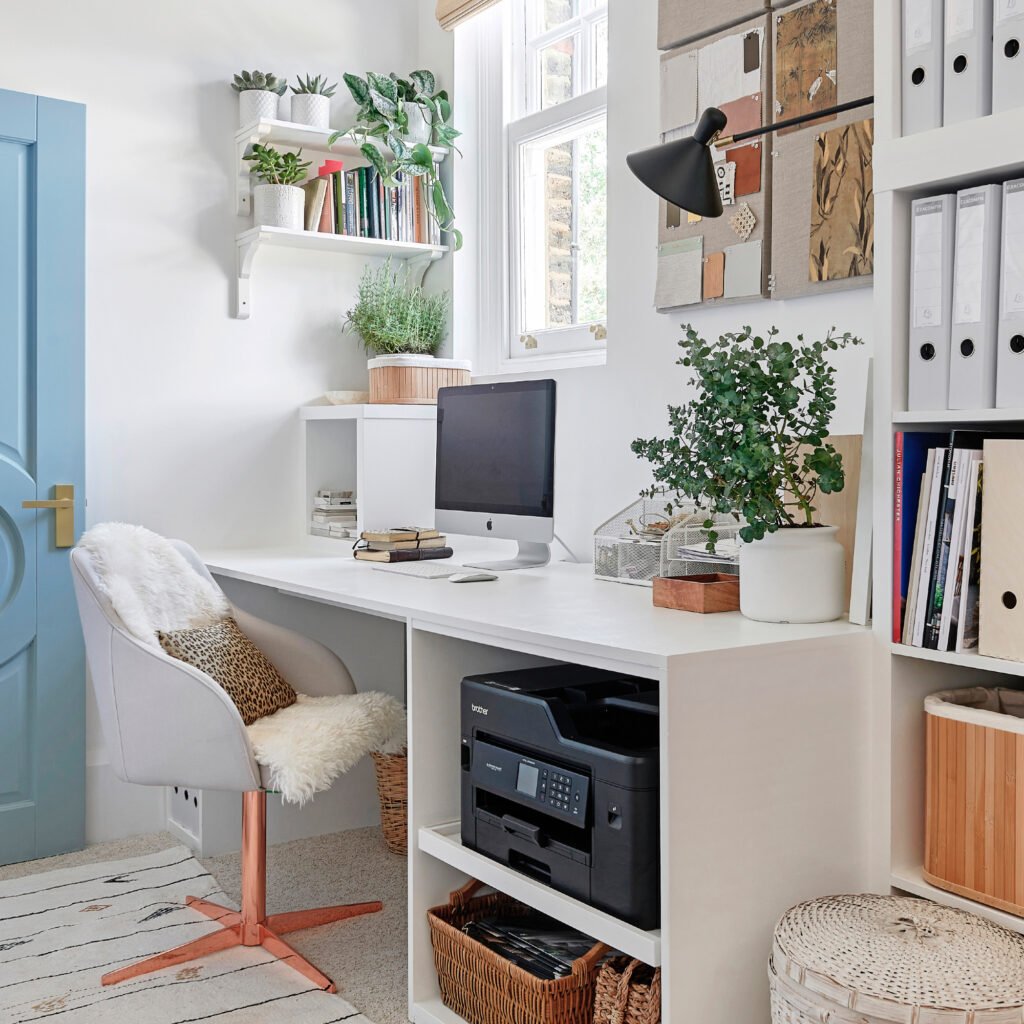
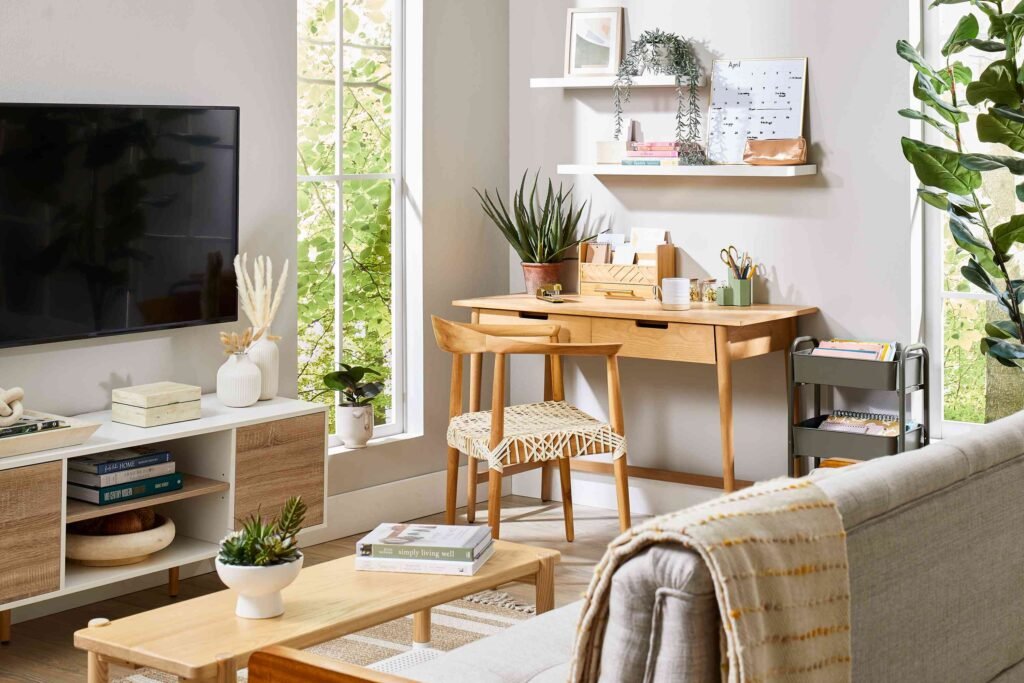
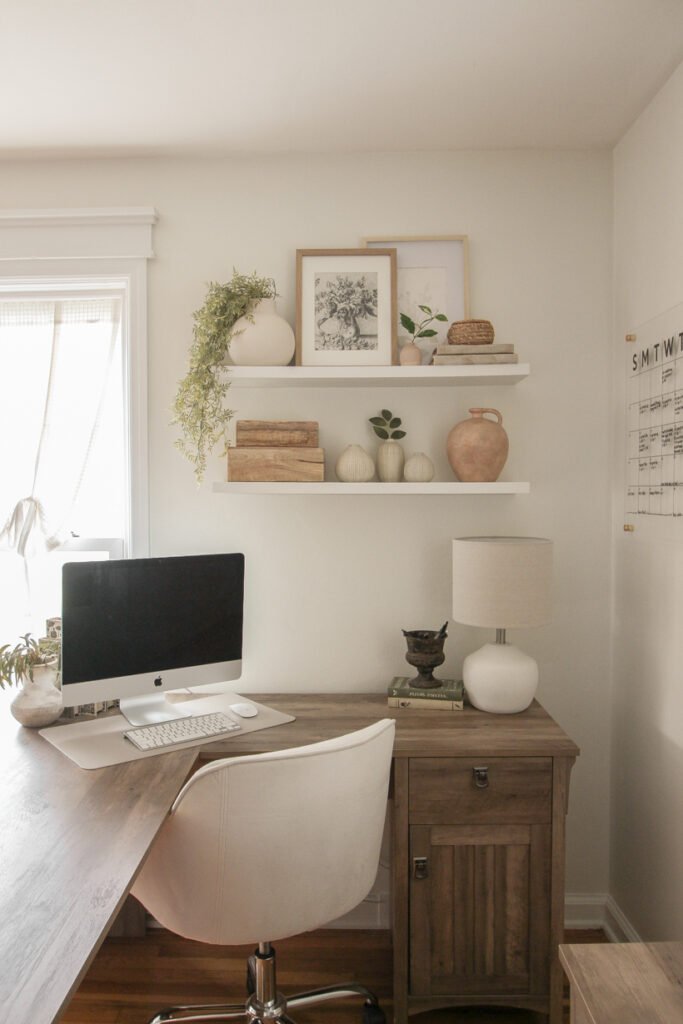
2. Natural Light Quality and Direction Natural daylight is the single most powerful productivity and wellbeing factor in workspace design — more impactful than furniture, color, or technology. However, light direction matters enormously:
- North-facing windows (in the northern hemisphere) provide consistent, diffuse light with no direct sun — ideal for screens
- East-facing windows provide morning sun that may cause glare during early work hours
- West-facing windows cause afternoon glare — problematic for afternoon video calls
- South-facing windows provide the most light but require blinds management throughout the day
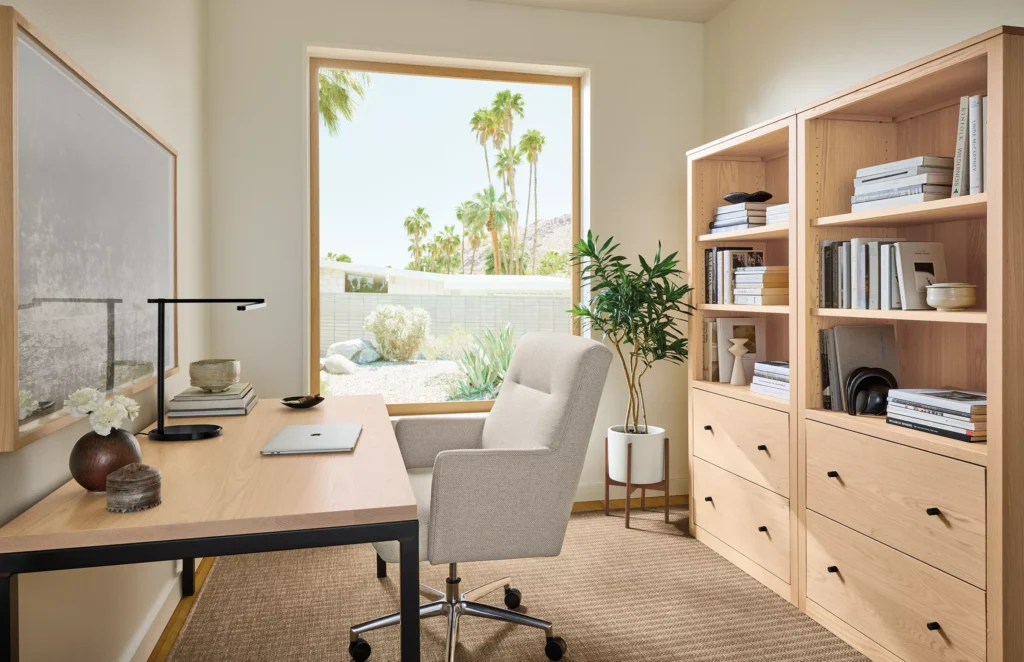
Position your desk perpendicular to the window — never directly facing it (causes eye strain from glare) and never with your back to it (creates a backlit silhouette on video calls).
3. Ventilation and Thermal Comfort A room that overheats in summer or gets cold in winter will make focused work impossible regardless of how well-equipped it is. Check whether your candidate location has adequate air circulation and access to heating and cooling. This is particularly relevant in older European buildings with limited insulation and single-pane windows.
4. Cable and Power Access Count the power outlets in each candidate location. A properly equipped home office requires at minimum 4–6 outlets for computer, monitor(s), lamp, phone charging, and peripheral devices. Running extension cords across floor areas creates trip hazards and looks unprofessional on video calls. Factor in proximity to your router if you rely on wired ethernet for video call stability.
Best Location Options by Home Type:
| Home Type | Best Option | Second Choice |
|---|---|---|
| US suburban home | Dedicated spare bedroom | Finished basement corner |
| European apartment | Quietest bedroom corner | Enclosed balcony |
| Studio apartment | Room divider partition zone | Under-loft sleeping platform |
| Shared home | Dedicated room with door | Hallway alcove with acoustic panels |
Step 3: Plan Your Layout Before Moving Furniture
Once you’ve selected your location, plan the layout on paper before moving a single piece of furniture. This takes 20 minutes and saves hours of frustration.
Measure the space accurately: Length, width, and ceiling height. Note window positions, door swing direction, radiator placement, and fixed power outlet locations.
The Four Most Effective Home Office Layouts:
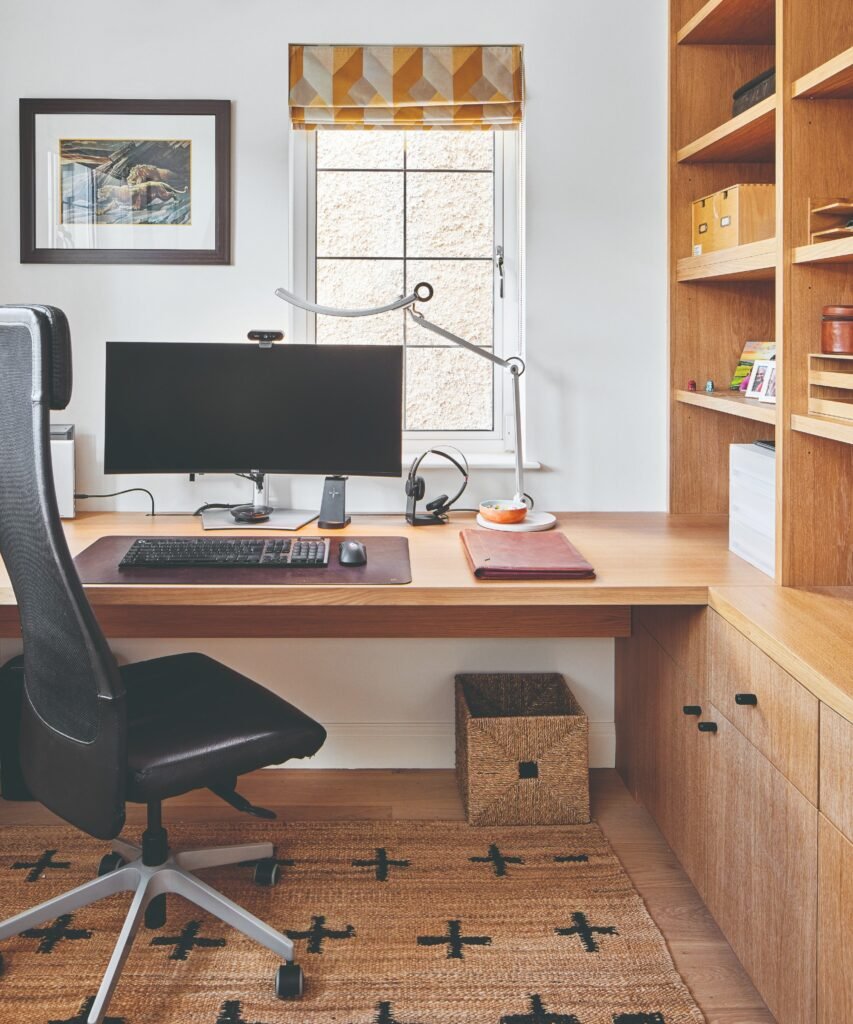
Straight Wall Layout Desk mounted against the longest wall, facing the wall. Maximum focus — no visual distractions in the forward field of view. Best for deep work requiring long concentration periods. Works in spaces as narrow as 180cm (6 feet) depth.
Window-Perpendicular Layout Desk positioned at 90 degrees to the window. Optimal for natural light without direct glare. Ideal for creative work, writing, and design. Works best when the window is on your non-dominant hand side.
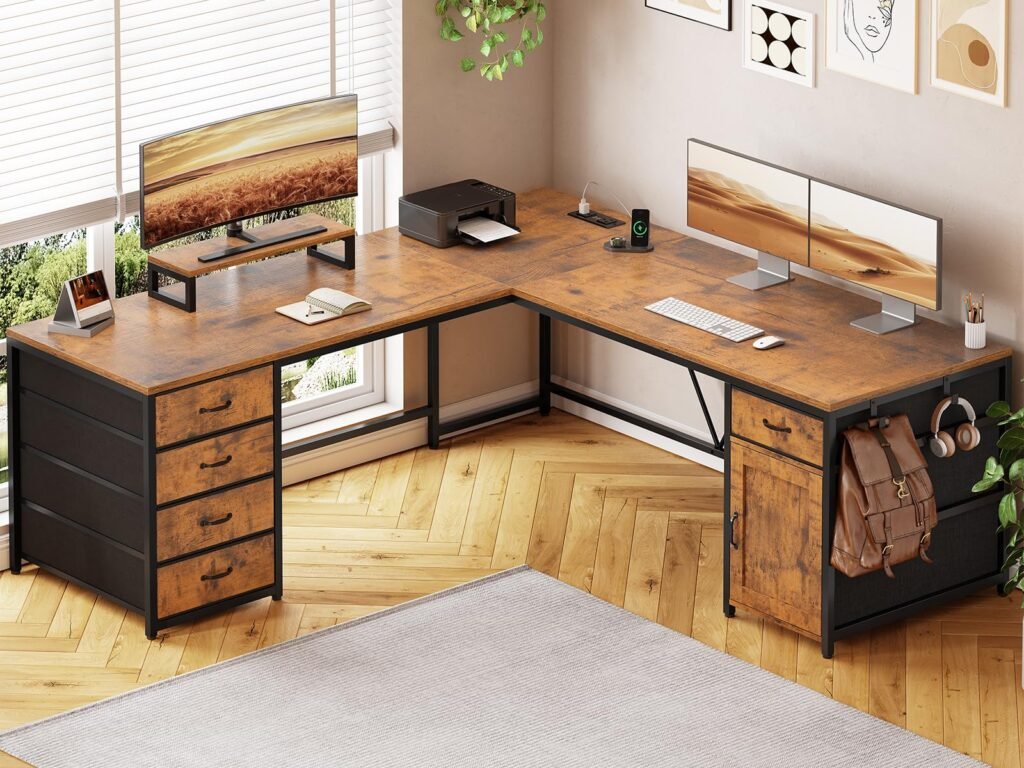
L-Shaped Layout Two desk surfaces forming an L-shape, providing a primary work zone and a secondary reference/equipment zone. Best for professionals who simultaneously use multiple devices or need physical document reference space alongside their computer. Requires a minimum room dimension of 3m × 3m (10ft × 10ft).
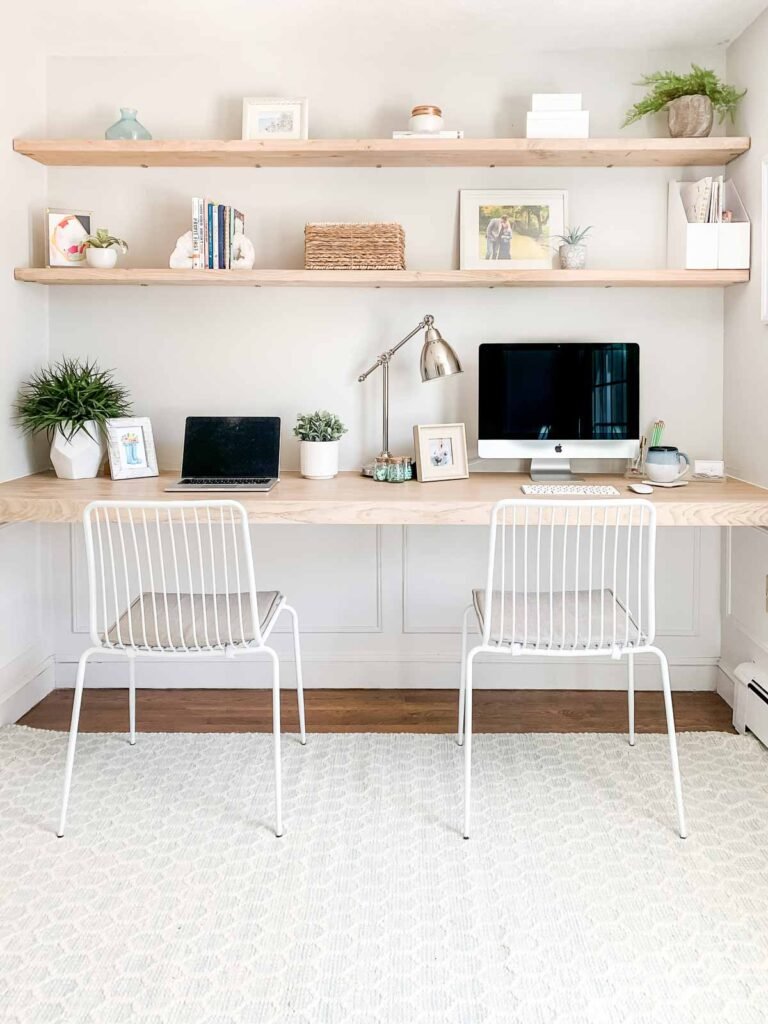
Floating Desk Layout Wall-mounted fold-down or cantilevered desk with no floor footprint when not in use. The only viable solution for studio apartments and very small rooms. Pairs with a compact task chair that stores underneath or folds flat. I covered space-saving wall solutions in detail in my post on 4 Space-Saving Floating Shelves That Make Small Homes Look Amazing.
Critical Ergonomic Dimension Rules (Non-Negotiable):
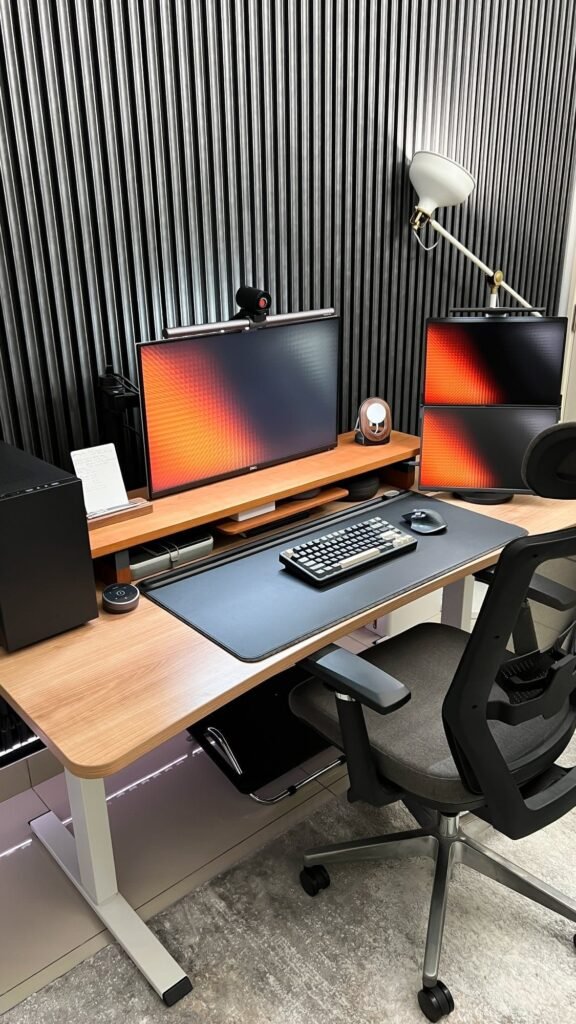
- Desk height: 71–76cm (28–30 inches) for seated work — adjustable is always better than fixed
- Monitor distance: 50–70cm (20–28 inches) from eyes
- Monitor height: top of screen at or slightly below eye level
- Elbow angle: 90–110 degrees when hands rest on keyboard
- Knee clearance under desk: minimum 60cm (24 inches)
Step 4: Select Ergonomic Furniture — Your Highest-Impact Investment
Furniture is not decoration. In a home office context, furniture is structural support infrastructure for the human body operating under sustained load for 8+ hours daily. Poor furniture choices cause musculoskeletal injuries that are expensive, painful, and slow to heal.
As an engineer who has reviewed building systems and materials for 17 years, I approach furniture selection with the same rigor I apply to specifying structural components — because the long-term consequences of getting it wrong are equally serious.
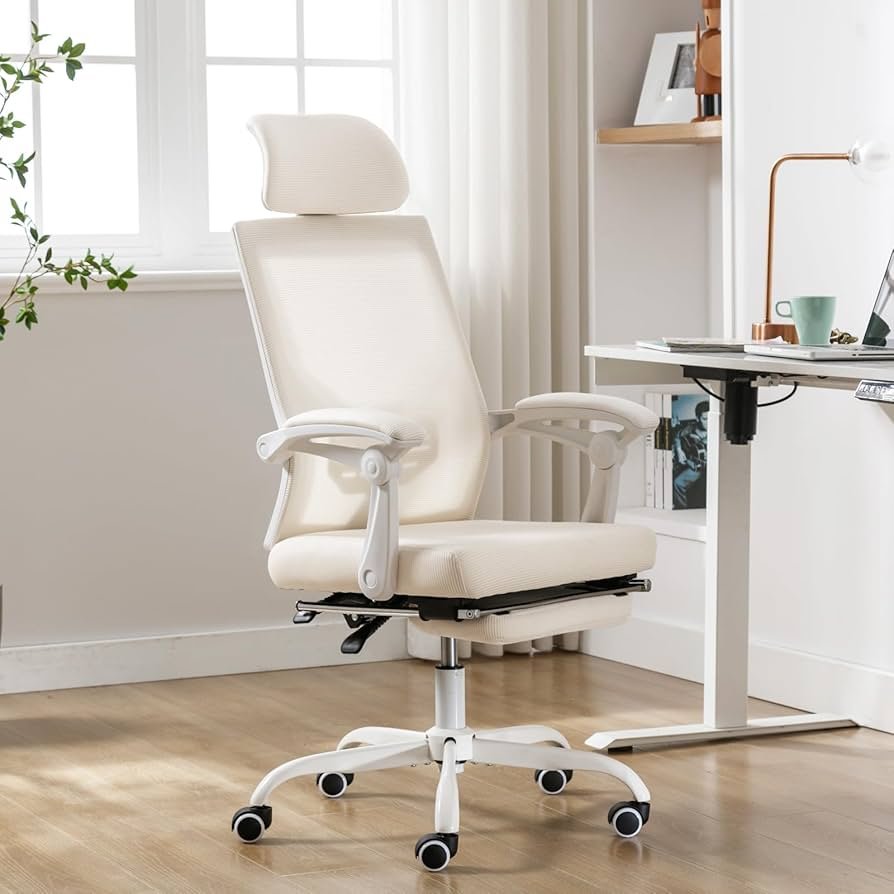
The Ergonomic Chair — Your Most Important Purchase
An ergonomic chair is not a luxury item. It is a medical necessity for anyone working more than 4 hours per day at a desk. The lumbar spine naturally maintains an S-curve when standing; this curve collapses when you sit on a flat dining chair, placing approximately 40% more compressive load on the L4-L5 and L5-S1 disc spaces compared to a properly supported seated position.
Over months and years, this cumulative mechanical stress causes disc compression, nerve impingement, and chronic lower back pain — one of the leading causes of work-related disability in both the US and Europe.
What to look for in an ergonomic chair:
- Adjustable lumbar support — must be height and depth adjustable, not just present
- Seat height adjustment — minimum range of 42–52cm (17–21 inches)
- Seat depth adjustment — allows you to sit fully back while maintaining 2–3 finger clearance behind the knee
- Adjustable armrests — 4D adjustability (height, width, depth, rotation) is ideal
- Breathable mesh back — foam-backed chairs trap heat during long sessions
- Weight rating — check it explicitly; don’t assume
View Ergonomic Office Chairs on Amazon
For a detailed review of specific ergonomic chair recommendations at different price points, see my dedicated post: The Best Home Office Chair for Back Pain in 2026.
The Desk — Size and Stability Matter More Than Style
Minimum desk dimensions for a functional home office:
- Depth: 60cm (24 inches) minimum — 75cm (30 inches) preferred for monitor placement at correct distance
- Width: 120cm (48 inches) minimum for single monitor setup — 160cm (63 inches) for dual monitor
- Surface stability: No wobble under typing load — test by pressing firmly on the far corner before purchasing
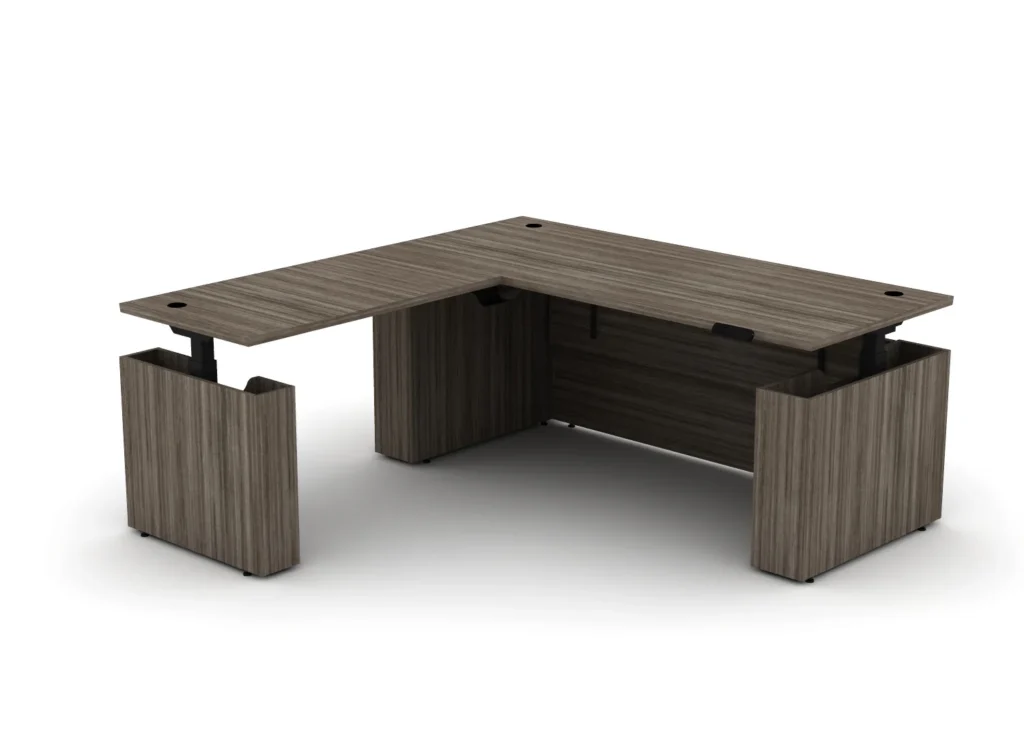
Adjustable standing desks deserve serious consideration for full-time remote workers. Research consistently shows that alternating between sitting and standing every 45–60 minutes reduces lower back load, improves circulation, and maintains afternoon energy levels better than exclusively seated work. Electric height-adjustable desks start around $300–400 and represent a strong long-term health investment.
Step 5: Design Your Lighting System — The Most Underrated Factor
Lighting is the most underrated element in home office design and the most commonly done wrong. Poor lighting doesn’t just cause eye strain and headaches — it directly impairs cognitive performance by disrupting your circadian rhythm and causing sustained visual fatigue that depletes mental energy reserves faster than the work itself.
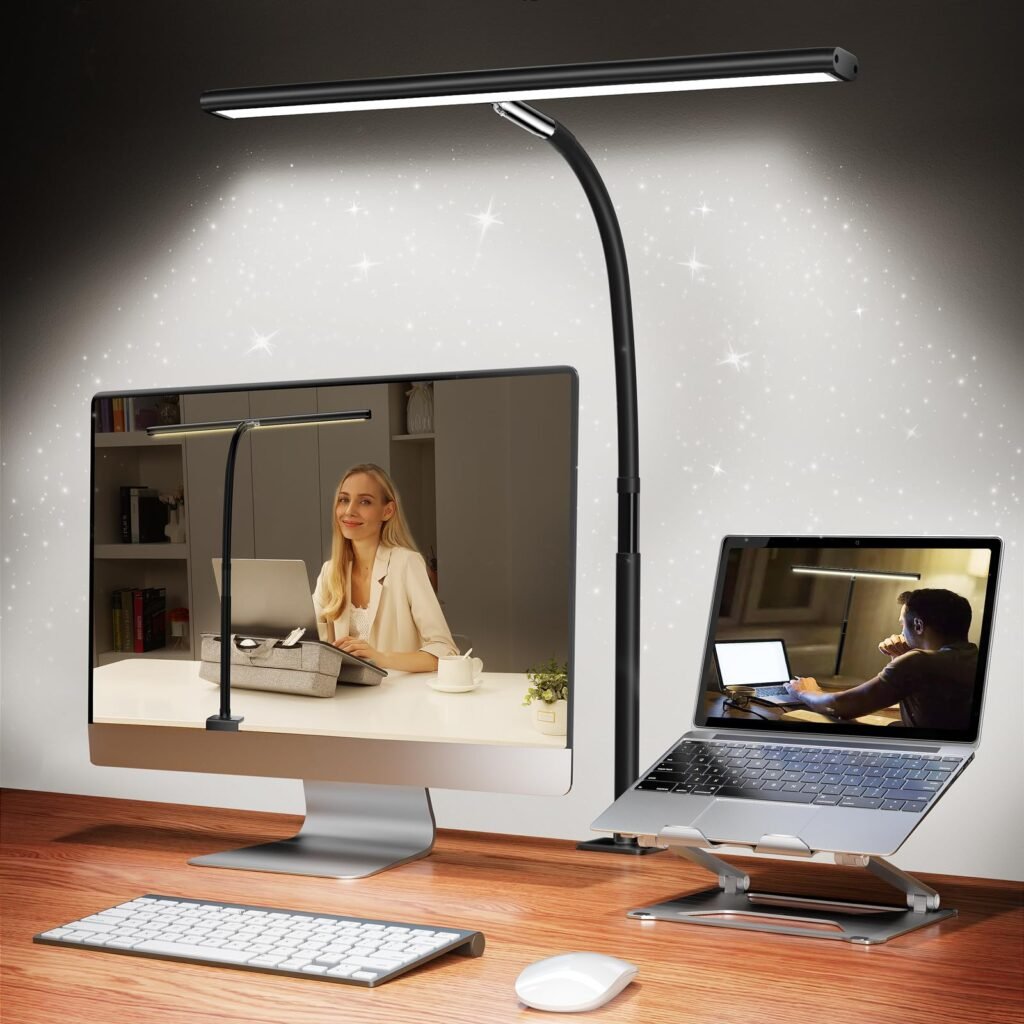
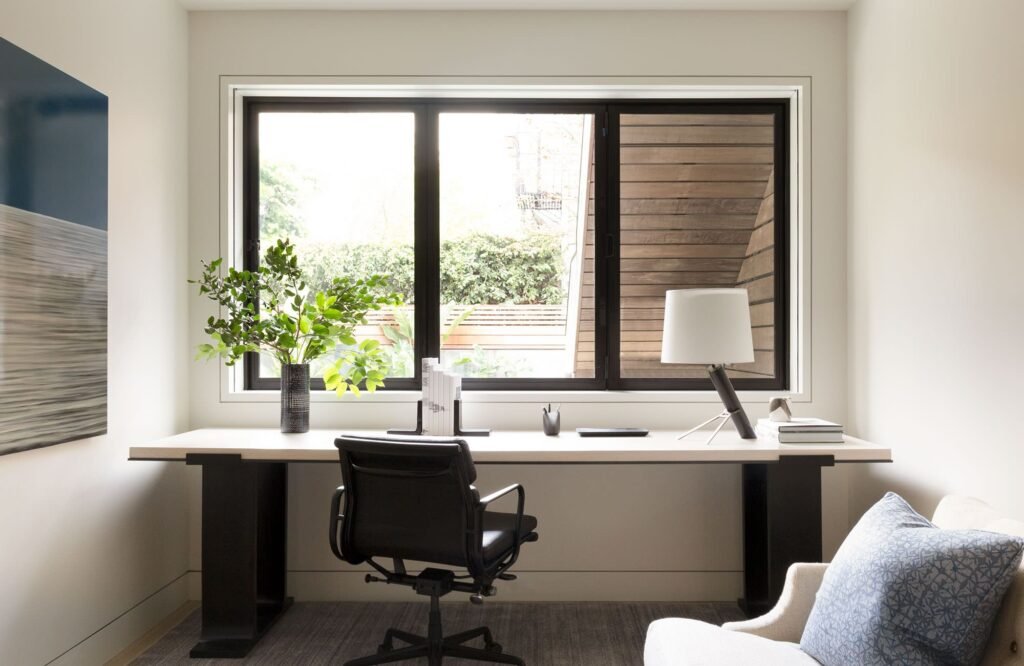
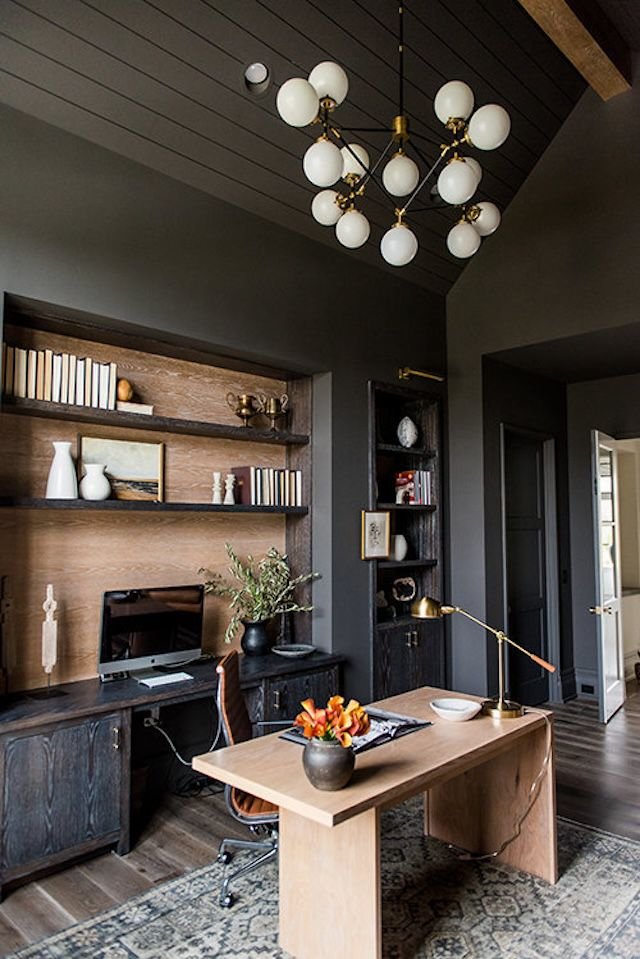
The Three-Layer Lighting System I Recommend:
Layer 1 — Ambient (Background) Lighting Provides general room illumination. Avoid harsh overhead fluorescent tubes — they produce high-frequency flicker invisible to the naked eye but detectable by the visual cortex, causing accelerated fatigue. Use LED panels with a Color Rendering Index (CRI) above 90 and a color temperature of 4000–5000K (cool white) for daytime work.
Layer 2 — Task Lighting A dedicated desk lamp positioned to illuminate your work surface without creating screen glare. The light source should be on your non-dominant hand side to prevent your writing hand from casting a shadow over your work. LED desk lamps with adjustable color temperature (2700K warm for evening, 5000K cool white for daytime focus) and adjustable brightness are the optimal specification.
Layer 3 — Bias Lighting (Screen Surround) LED strip lighting placed behind your monitor reduces the perceived contrast ratio between the bright screen and dark background, significantly reducing eye strain during extended screen sessions. This is standard practice in professional video editing and design studios and is equally valuable for any extended screen work.
Video Call Lighting — Increasingly Important in 2026 As video calls have become a permanent fixture of professional life, your lighting setup needs to make you look good on camera. The key principle: your face needs a light source in front of it (facing you), not behind or above. A ring light or a well-positioned desk lamp at approximately 45 degrees to your face and slightly above eye level produces the most flattering and professional-looking illumination on video calls.
Step 6: Build a Smart Storage System
Clutter is not just aesthetically unpleasant — it is a cognitive load problem. Research in environmental psychology consistently shows that visual clutter in the work environment increases cortisol levels, reduces working memory capacity, and decreases the ability to sustain focused attention.
From a structural planning perspective, storage should be designed before the desk is positioned — not retrofitted around it afterward.
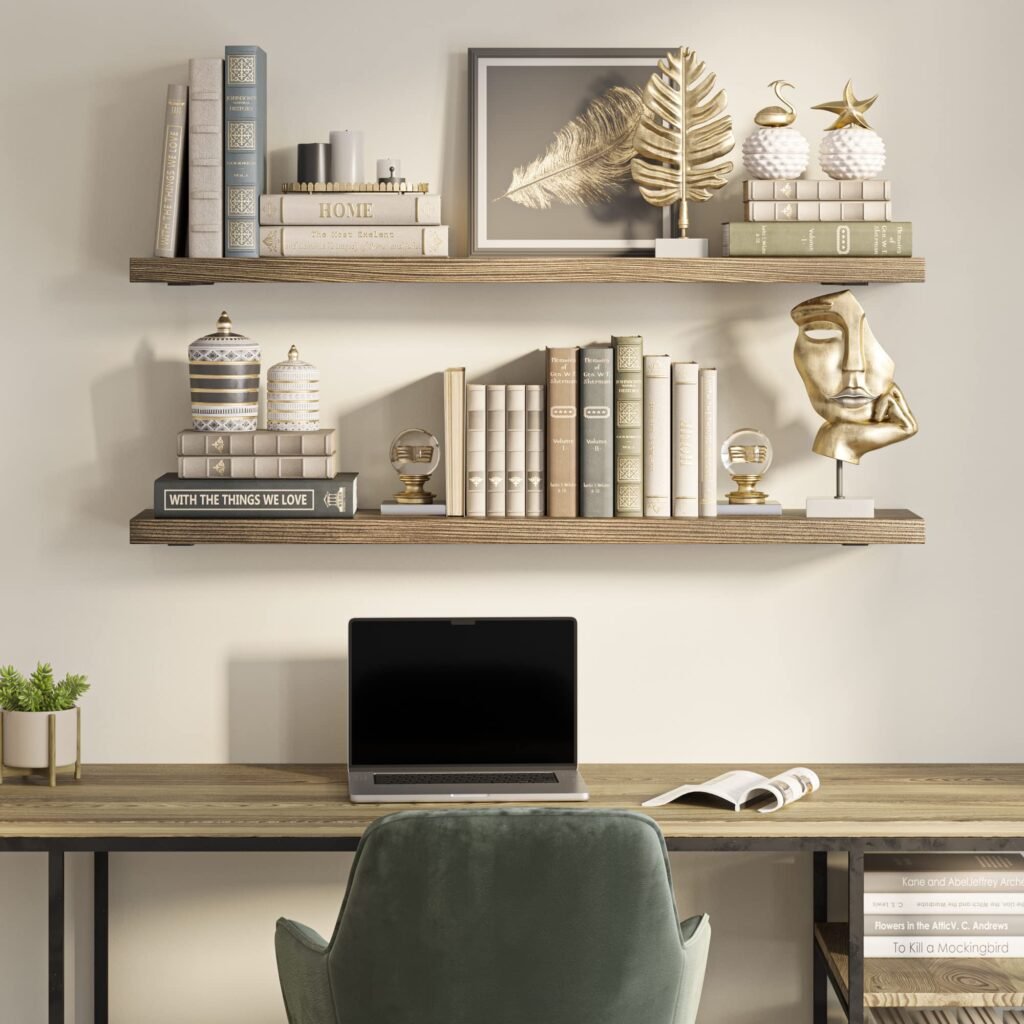
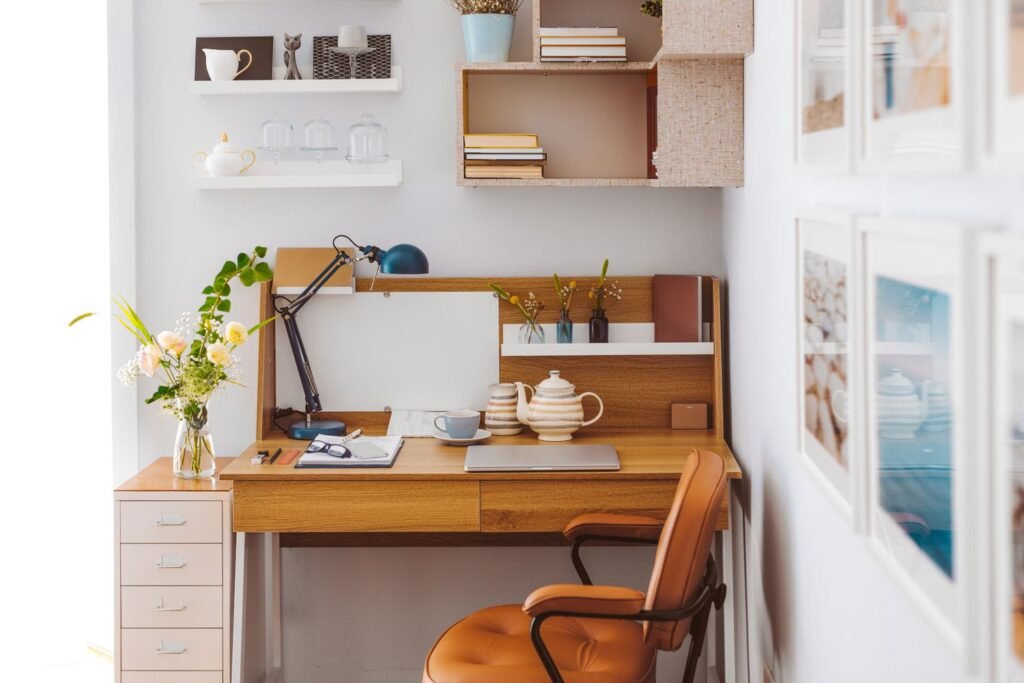
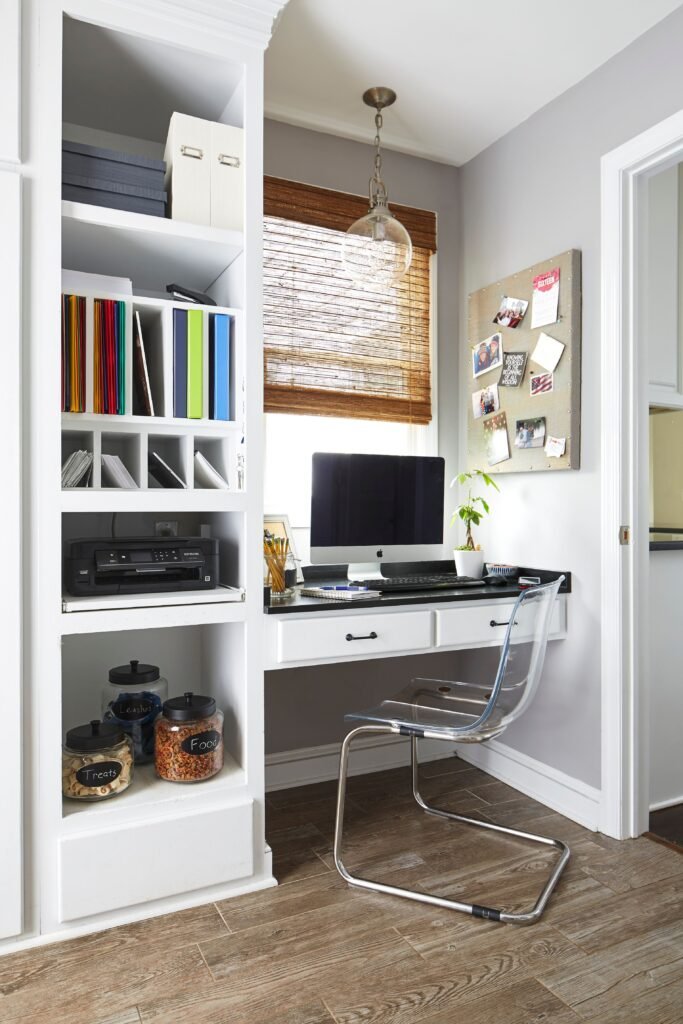
Vertical Storage First In any constrained space — particularly European apartments — exploit vertical wall space before expanding horizontally. Wall-mounted shelves, pegboards, and floating cabinets provide significant storage capacity without occupying floor space. I covered the best options in detail in my post on 4 Space-Saving Floating Shelves for Small Homes.
Cable Management — Non-Negotiable Exposed cables are a trip hazard, a visual distraction, and a barrier to a professional video call background. At minimum invest in:
A power strip with individual switched sockets mounted under the desk
Cable management tray mounted under the desk surface
Velcro cable ties for bundling power cables
Cable clips along the desk edge for frequently used cables
Essential Storage Components:
- Monitor stand with integrated USB hub and storage drawer
- Desk organizer for stationery, notes, and daily-use items
- Filing system (digital-first workflow with one physical file tray for active documents)
- Drawer organizer for cable accessories and peripherals
Step 7: Build Your Technology Stack
Your technology choices directly determine your professional output quality and your video call presence — both increasingly visible to clients, colleagues, and employers in a remote work environment.
Core Technology Checklist:
Display:
- Minimum 24-inch external monitor for laptop users — working on a 13–15 inch laptop screen for 8 hours daily causes avoidable eye strain
- 27-inch 1440p resolution is the optimal price-to-productivity specification in 2026
- IPS panel for color accuracy — important for any visual or design work
Input Devices:
- External keyboard — allows you to position the monitor at the correct distance independently of keyboard placement
- Full-size mouse — laptop trackpads are not ergonomically viable for extended daily use
- Monitor arm — positions your display at the exact correct height and distance, frees up desk surface space
Audio:
- Noise-canceling headphones or headset for calls — essential in any home environment with background noise
- Dedicated USB microphone if you attend frequent video calls — dramatically improves audio quality compared to laptop or headset microphones
Connectivity:
- Wired ethernet connection where possible — eliminates the packet loss and latency variability that causes video call degradation on WiFi
- USB-C hub or docking station to consolidate all peripherals into a single cable connection to your laptop
🔗 View Cable Management Solutions on Amazon
For smart home office gadgets that go beyond the basics, see my detailed review: 5 Life-Changing Smart Home Office Gadgets to Skyrocket Your Focus.
Step 8: Add Purposeful Décor That Supports Productivity
Décor in a home office serves a functional purpose — it should support your mental state for productive work, not compete with it for attention.
Color Psychology for Work Environments:
Avoid red as a dominant wall color — associated with urgency and elevated heart rate, counterproductive for sustained focused work
Blue tones — associated with focus, calm, and analytical thinking. Best for data work, writing, and deep concentration tasks
Green tones — associated with balance and reduced eye fatigue. Particularly effective when combined with natural plant elements
Neutral whites and greys — maximize perceived space and light reflection. Best for small offices where enlarging visual space is a priority
Avoid red as a dominant wall color — associated with urgency and elevated heart rate, counterproductive for sustained focused work
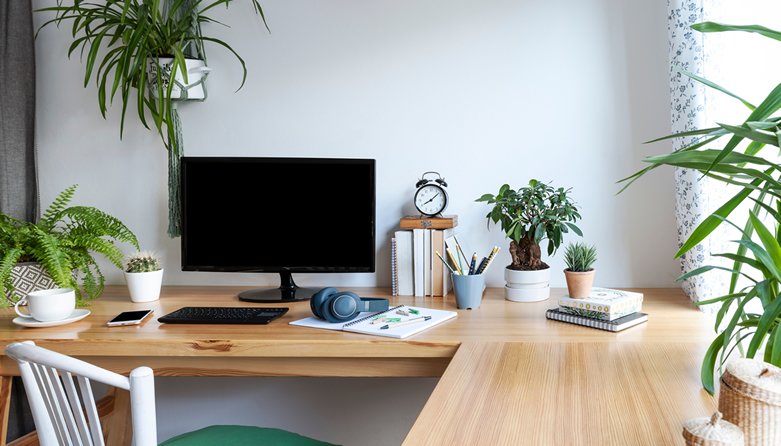
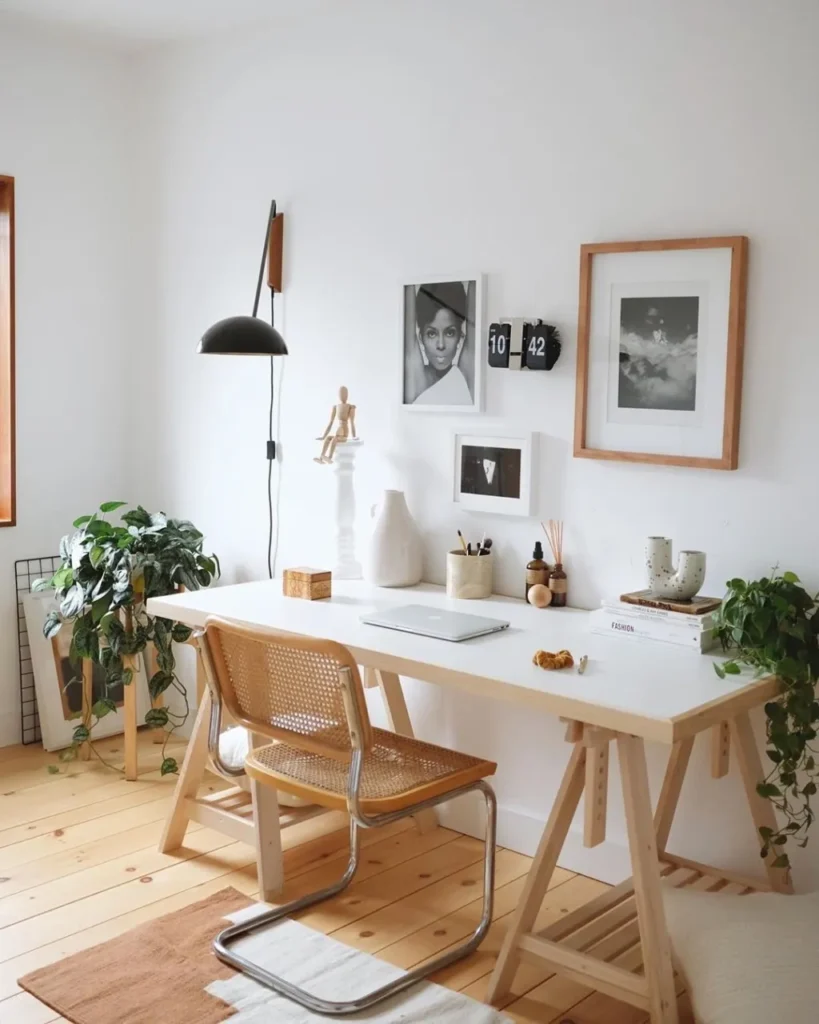
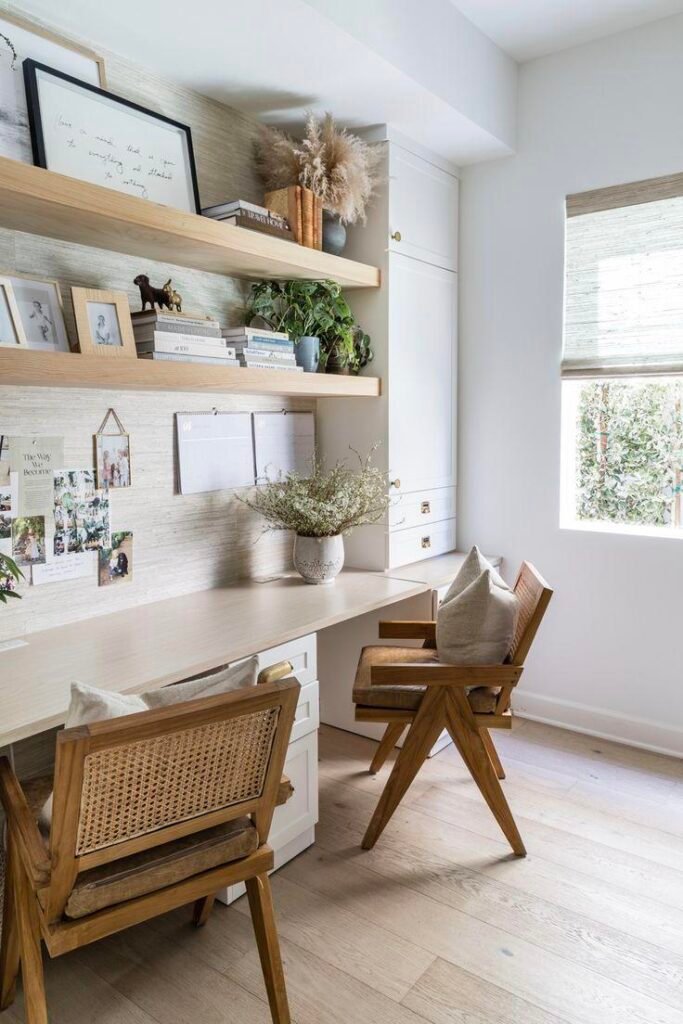
Plants — Functional, Not Just Decorative: Indoor plants in work environments have documented cognitive benefits: they reduce perceived stress, lower background noise levels through sound absorption, improve air quality by reducing CO₂ concentration, and provide a micro-restorative visual break during cognitively demanding work sessions.
Low-maintenance options suitable for office environments: snake plant (Sansevieria), ZZ plant, pothos, and peace lily.
What to Avoid:
Decorative items that collect dust and require frequent cleaning — they add maintenance burden to your workspace management
Personal photos or visually complex artwork in your direct line of sight while working — they become unconscious distractions
Overly bright or pattern-heavy accent walls behind your monitor position
Step 9: Budget Planning — What to Prioritize
A functional home office does not require a large upfront investment if you prioritize correctly. Here’s the spending hierarchy I recommend based on impact-per-dollar:
| Priority | Item | Why | Budget Range |
|---|---|---|---|
| 1st | Ergonomic chair | Prevents injury — highest long-term cost of getting wrong | $200–500 |
| 2nd | External monitor | Eliminates laptop screen strain | $150–350 |
| 3rd | Desk lighting | Prevents eye strain and fatigue | $30–80 |
| 4th | Desk (adequate size) | Structural workspace foundation | $150–400 |
| 5th | Cable management | Reduces clutter and hazard | $20–50 |
| 6th | Storage solutions | Maintains cognitive clarity | $50–150 |
| 7th | Décor and plants | Supports mood and motivation | $30–100 |
Budget-Stretching Strategies:
- Purchase the ergonomic chair new — this is not an area to compromise on second-hand items where foam compression and structural integrity are unknown
- Monitor, desk, and storage can often be sourced second-hand in excellent condition through Facebook Marketplace, eBay, or local office clearance sales
- Upgrade gradually — start with chair, monitor, and lighting, then add storage and tech upgrades over subsequent months
10 Common Home Office Design Mistakes to Avoid
Based on 17 years of experience evaluating workspaces and the most frequent problems I see in reader setups:
1. Using a dining chair — the most common and most damaging mistake. Replace this first, before anything else.
2. Monitor at wrong height — laptop directly on desk surface means your neck flexes forward 30–45 degrees for hours. Use a monitor stand or laptop riser immediately.
3. Desk facing the window — creates glare on screen and silhouettes your face on video calls. Reposition perpendicular to the window.
4. Single overhead light source — creates harsh shadows and screen glare. Add a desk lamp as minimum.
5. No cable management — cables on the floor are a trip hazard and a visual distraction. Takes 30 minutes to fix and makes an immediate difference.
6. Desk too small — insufficient depth means your monitor is too close. Minimum 60cm depth for healthy screen distance.
7. No acoustic consideration — if your household is noisy, invest in noise-canceling headphones before any furniture upgrade.
8. Overcrowded desk surface — keep only items used daily on the desk surface. Everything else goes in storage.
9. Ignoring ventilation — a room that gets stuffy within an hour will impair your cognitive performance measurably. Ensure air circulation.
10. Designing for appearance over function — a home office that photographs well on Instagram but causes back pain and eye strain within two hours is a design failure regardless of how it looks.
Frequently Asked Questions
Q: How much space do I need for a functional home office?
A functional single-person home office can be designed in as little as 4 square meters (43 square feet) using wall-mounted storage and a floating desk. A comfortable full-time setup with storage typically requires 6–9 square meters (65–97 square feet). A fully equipped setup with L-shaped desk needs 9–12 square meters (97–130 square feet) minimum.
Q: Is a standing desk worth it?
For full-time remote workers (6+ hours daily), yes — the ergonomic and health benefits are well-documented. For part-time setups of 3–4 hours daily, a high-quality ergonomic seated chair is sufficient. The best standing desks are electric height-adjustable models that allow instant transition between seated and standing positions.
Q: How do I set up a home office in a studio apartment?
Use a wall-mounted fold-down desk, a compact task chair, and vertical wall storage. Position the desk in the quietest corner with the best light access. Use a room divider or bookshelf to create a visual separation between your work zone and living space — this psychological boundary is important for both productivity during work hours and mental separation after work hours.
Q: What internet speed do I need for remote work?
Minimum 25 Mbps download and 10 Mbps upload for single-person remote work including video calls. For households with multiple simultaneous users or 4K video call requirements, 100 Mbps symmetric is the recommended specification. Always connect via wired ethernet for video calls when possible — WiFi introduces variable latency that causes the audio and video degradation most people attribute incorrectly to bandwidth.
Q: How do I make my home office look professional on video calls?
Three factors in priority order: (1) Light source facing your face — not behind you; (2) Clean, uncluttered background — a plain wall or minimal bookshelf is better than a busy room; (3) Camera at eye level — prop up your laptop or use an external webcam on a stand to eliminate the unflattering upward angle that built-in laptop cameras create.
Q: What’s the most important upgrade for someone with back pain?
Replace your chair immediately — before any other purchase. A quality ergonomic chair with proper lumbar support and adjustable seat depth will deliver more measurable relief than any other single change to your workspace. See my detailed chair review: The Best Home Office Chair for Back Pain in 2026.
Final Thoughts
Designing a productive home office is an engineering problem — and like all engineering problems, it has a systematic solution.
Start with the fundamentals in priority order: location, chair, lighting, desk, storage, technology. Each layer builds on the one before it. Get the ergonomics right first and everything else improves around it.
A well-designed home office pays for itself within weeks through the productivity gains from reduced fatigue, reduced distraction, and a workspace that supports rather than fights your ability to focus. More importantly, it protects your physical health through the years of daily use ahead.
The goal isn’t a beautiful home office. It’s a home office that makes you better at your work every single day.
Related posts you’ll find useful:
- 5 Life-Changing Smart Home Office Gadgets to Skyrocket Your Focus
- The Best Home Office Chair for Back Pain in 2026
- 4 Space-Saving Floating Shelves That Make Small Homes Look Amazing
- 5 Genius Small Entryway Ideas to Transform Your Space
- Small Apartment Living Room Layout Ideas 2026
- 5 Stationery Finds to Boost Productivity and Privacy